

WeaselWorks emails keep your team in the loop: invitations, a note when someone is added to a Workspace, and alerts when someone is assigned or mentioned, or when a task they follow changes. You can change the wording of every one of them to sound like your team, and you don't need to touch any code.
In short: go to WP Admin › WeaselWorks › Emails, pick an email, change the words, then use Preview or Send Test before you save. The Emails screen is part of WeaselWorks Free.
Where to Find the WeaselWorks Emails
In your WordPress dashboard, open WeaselWorks in the left menu and choose Emails. You'll see all eight WeaselWorks emails, each with its own editor. Only WordPress administrators can see this screen.
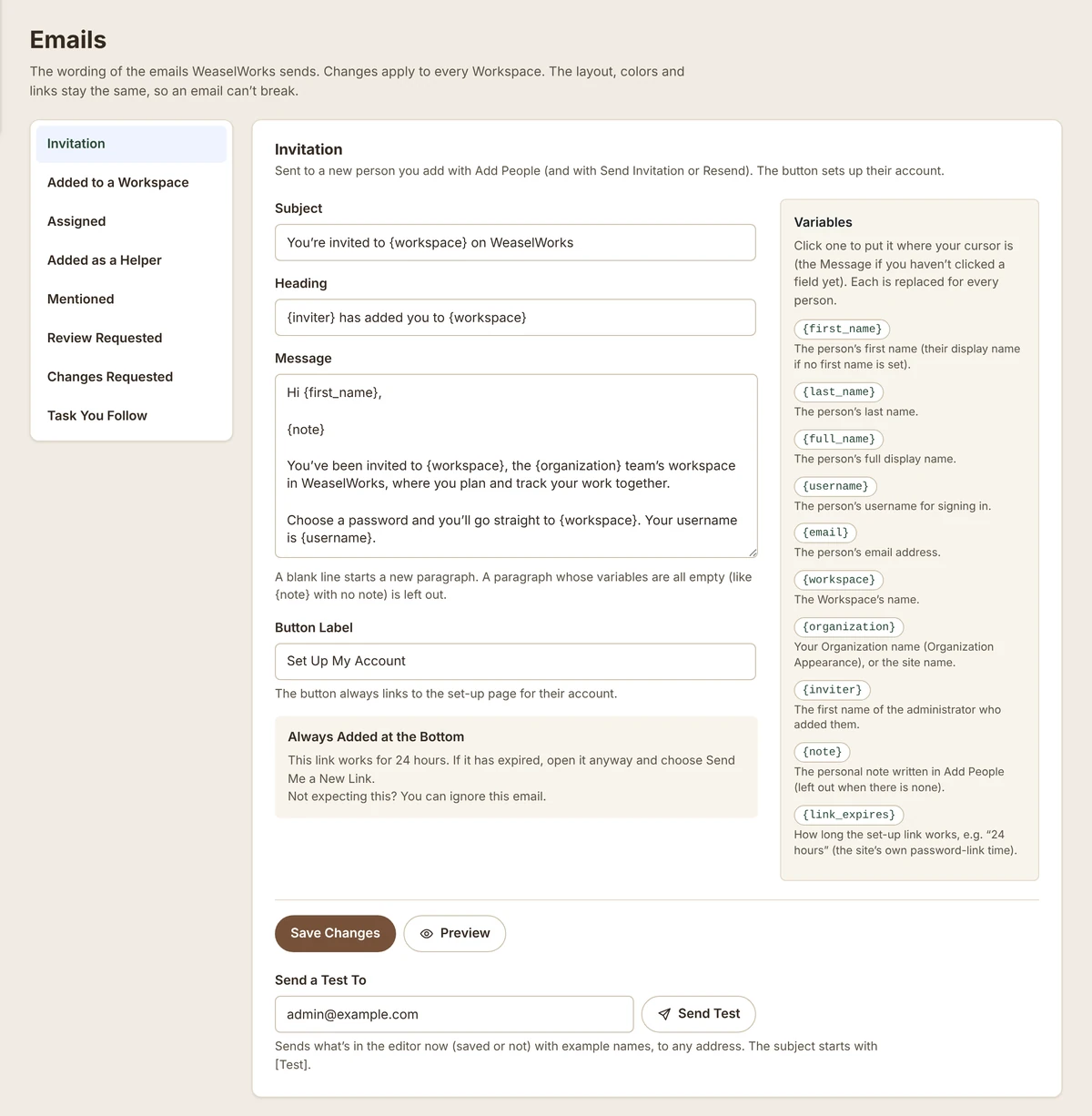
Change an Email in Five Steps
- Choose the email you want to change, for example Invitation.
- Edit the subject, heading, message and button label. Leave a field empty to use the default wording.
- Add details with variables such as
{first_name}or{workspace}. Click one in the list to put it in. - Check it with Preview, or use Send Test to see it in a real inbox.
- Save. Every email of that kind uses your new wording from now on.
Tip: changed your mind? Reset to Default puts the whole email back the way WeaselWorks wrote it.
The Eight WeaselWorks Emails
| Who gets it | When it's sent | |
|---|---|---|
| Invitation | A new person | When you add them and email the invitation |
| Added to a Workspace | Someone who already has an account | When you add them to a Workspace |
| Assigned | The task's owner | When someone gives them a task |
| Added as a Helper | The new helper | When someone adds them as a helper on a task |
| Mentioned | The person tagged | When someone @mentions them |
| Review Requested PRO | The reviewers | When a task is ready for their review |
| Changes Requested PRO | The task's owner and whoever asked for the review | When a reviewer asks for changes |
| Task You Follow | People who follow the task and have switched this email on in Settings › Alerts (it's off at first) | When someone else comments, changes its status, due date or owner, or completes or reopens it |
What You Can Change
All WeaselWorks emails share the same simple layout, so it always looks tidy and matches the rest of WeaselWorks. You choose the words; WeaselWorks looks after the rest.
You Can Change
- The subject line
- The heading
- The message
- The button label
Always Stays the Same
- The layout and colors
- Where the button links to
- The small print at the bottom
- The line that says how long a link works
Your wording is used for the whole site, so every Workspace sends the same version.
Writing Tips
- Keep it short. Most people read these emails on a phone.
- To start a new paragraph, leave a blank line: press Enter twice.
- If a variable has nothing to show (for example, no personal note), the paragraph that holds it is left out, so there are no empty gaps.
- Say what happens next, such as "Click the button to choose your password."
Email Variables
Variables are words in curly brackets that WeaselWorks swaps for real details when it sends the email. Each email lists the variables it can use.
| Variable | Becomes |
|---|---|
{first_name} |
The person's first name. |
{last_name} |
The person's last name. |
{full_name} |
The person's display name. |
{username} |
Their WordPress username. |
{email} |
Their email address. |
{workspace} |
The Workspace's name. |
{organization} |
Your Organization's name. |
{inviter} |
The first name of the administrator who added them. |
{link_expires} |
How long the set-up link works, for example 24 hours. |
{note} |
The personal note you added, if any. |
{actor} |
The person who did it, for example who assigned the task. |
{task} |
The task's name. For a subtask, "Parent › Subtask". |
{comment} |
The start of the comment (about 40 words), or the reviewer's note. |
{where} |
Where the mention was: "in a comment" or "in a task description". Only the Mentioned email uses it. |
{change} |
What changed, for example "changed the status to Stuck." Only the Task You Follow email uses it. |
Watch out: if you delete a variable, the email goes out without that detail. To put it back, click it in the list beside the editor.
Preview or Send Test?
Both let you check an email before your team sees it. Use whichever suits you.
| Preview | Send Test | |
|---|---|---|
| Where you see it | A new browser tab | A real inbox |
| Uses sample details | ✓ | ✓ |
| Checks that email arrives | — | ✓ |
| Send it to any address | — | ✓ |
| Subject marked "[Test]" | — | ✓ |
Who WeaselWorks Emails Come From
Set the sender's name and address in Organization Settings › Email Notifications. If you leave the address empty, WeaselWorks uses WordPress's own sender address, never your personal email.
For emails that reliably reach inboxes, we recommend an email plugin such as WP Mail SMTP. Setting up for the first time? The Get Started guide covers Organization Settings step by step.
Common Questions
Can each Workspace have its own wording?
No. WeaselWorks emails are worded the same for the whole site, so every Workspace sends the same version.
Do my changes affect emails that were already sent?
No. Your new wording is used from the moment you save.
Is the Emails screen part of WeaselWorks Pro?
No, it's in WeaselWorks Free. Only the two review emails, Review Requested and Changes Requested, belong to Pro features.