

Your team can attach files to tasks, comments and task descriptions in WeaselWorks. Those files often hold real work, so WeaselWorks keeps them private: they open only for signed-in people who can see the task. Here's how that works, how to check your site, and the five-minute step a few hosts need.
In short: go to WP Admin › WeaselWorks › Files › Overview and look at File Protection. If it says Private, you're done. If it says Not Fully Private, files still work, but block the files folder in your hosting account (or send your host the ready-made message), then click Check Again.
How WeaselWorks Protects Your Files
Three layers work together.
1. WeaselWorks Checks Every Time
A file only opens through WeaselWorks, and only for signed-in people who can see its task. This is always on, on every host.
2. Hidden, Random Addresses
Files are kept in a folder with a random name on your own website, outside the Media Library. Since WeaselWorks 1.0.180, each new file also gets its own random name on the server, so a file's web address can't be guessed. Your team still sees and downloads each file under its normal name.
3. Blocking File Links
WeaselWorks also asks your web server to turn away anyone who tries to open a file straight from its web address. On most hosts (those running Apache or LiteSpeed), this works by itself. On some hosts that run nginx, such as WP Engine, Kinsta and Pantheon, the server ignores that request, so you turn it on once yourself. It takes about five minutes, and files keep working in the meantime.
Check Your Site
In your WordPress dashboard, go to WeaselWorks › Files › Overview and find the File Protection card. It shows one of three things:
- Private: a file only opens inside WeaselWorks, for signed-in people who can see the task. Someone who gets a file's link can't open it. You're done.
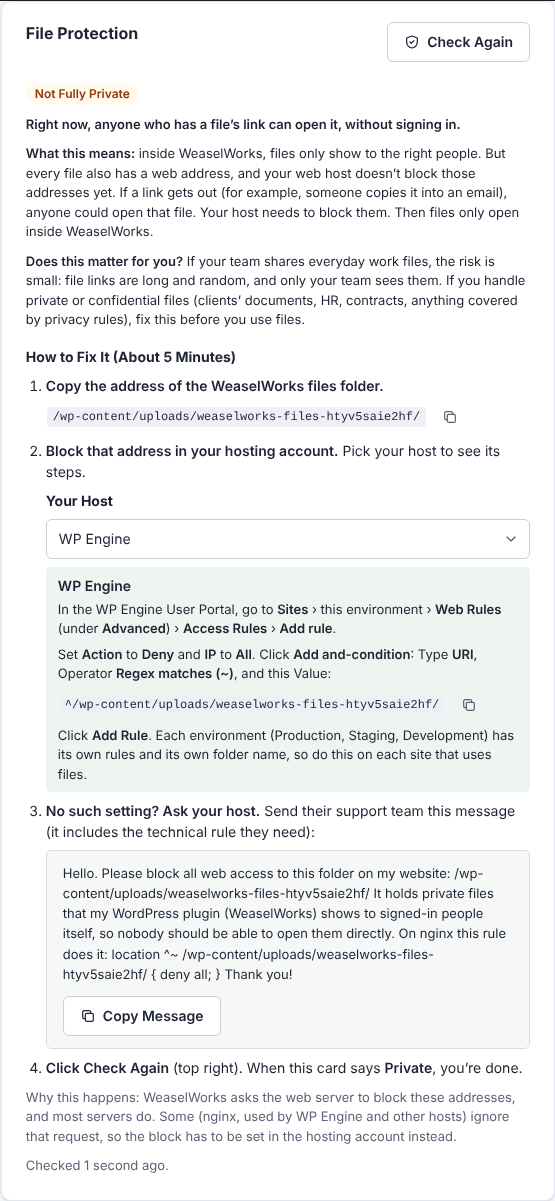
- Not Fully Private: files still work, but right now anyone who has a file's link could open it without signing in. The card explains what that means, whether it matters for you, and how to fix it.
- Couldn't Check: neither the website nor your browser got a clear answer. Files still work. See below.
WeaselWorks checks from your own browser, the same way any visitor would. So the card shows Private as soon as the block works.
Does It Matter for You?
If your team shares everyday work files, the risk is small: file links are long and random, and only your team sees them. If you handle private or confidential files, such as clients' documents, HR files, contracts or anything covered by privacy rules, fix it before you start using files.
The Reminder
While files are Not Fully Private, an amber reminder shows on the other WeaselWorks admin screens, with a Show Me How button. Don't need it? Click × to hide it for everyone. Show the Reminder Again on the File Protection card brings it back. After the fix, click Check Again: the card turns Private and the reminder goes away by itself.
Block File Links in About Five Minutes
You only need this if File Protection says Not Fully Private. The card walks you through it:
- Copy the address of the WeaselWorks files folder. The card shows it, with a Copy button.
- Pick your host in the Your Host list and follow its steps. If WeaselWorks recognizes your host, it's already picked for you.
- No setting you can change? Click Copy Message and send the ready-made message to your host's support team. It names your folder and includes the technical rule they need.
- Click Check Again. When it says Private, you're done.
Hosts in the Your Host List
Steps you can follow yourself: WP Engine, Cloudflare (works whatever your host), Pantheon, SpinupWP, GridPane, RunCloud, and your own nginx server.
A ready-made message for support: Kinsta, Flywheel, Pressable, Cloudways, WordPress.com and Pagely. There's no setting you can change yourself on these hosts, so their support team adds the block for you.
Host not listed? Pick My Host Isn't Listed. Look in your hosting account for a setting that blocks a web address (hosts call it Web Rules, Access Rules, Blocked Paths, Security or Nginx Config) and add a rule that blocks every visit to the folder's address. Or send the ready-made message.
Apache and LiteSpeed hosts (most shared hosting, such as Hostinger, SiteGround and Bluehost) usually have nothing to do, because links are already blocked. Check the card to be sure.
Watch out: every site's files folder has its own random name. Always copy the address from your own File Protection card, never from another site or a forum post. WeaselWorks shows you the exact one.
What If It Says Couldn't Check?
Neither the website nor your browser got a clear answer. Try Check Again later. Files still work, and WeaselWorks still checks every file before it opens.
Common Questions
Do I need to do this?
Only if File Protection says Not Fully Private, and it matters most if you handle private or confidential files. On most hosts it already says Private.
Will this break anything?
No. WeaselWorks reads files straight from your server and never uses their web addresses itself, so blocking the links changes nothing for your team.
Why can't I add files on my Personal Board?
Files are for Group Boards only. Personal Boards are just for you, so they don't take files. Move the task to a Group Board to attach files.